FREE Online photo silhouette maker

Turn any photo
into a silhouette.

Turn an image into a colored silhouette, transparent silhouette PNG, or clean outline PNG. No account, no uploads — just choose a photo.

Drop your image here

or choose a photo from your device

JPG · PNG · WEBPUP TO 15MB
QUIZ MAKERSTEACHERSCREATORSDESIGNERS
HOW IT WORKS

Three steps. That’s it.

01

Pick a photo

Any image with a clearly visible subject works.

02

Let it find the shape

Your browser traces the subject right on your device.

03

Download all three

Save the scene, solid cutout, or outline PNG.

THREE USEFUL OUTPUTS

A silhouette is more useful when you get to choose the background.

The same subject mask produces three different files: one keeps the original scene, one gives you a solid-color cutout, and one keeps only the outer edge. All three are full-size PNG downloads.

01 / SCENE SILHOUETTE

Keep the setting. Hide the answer.

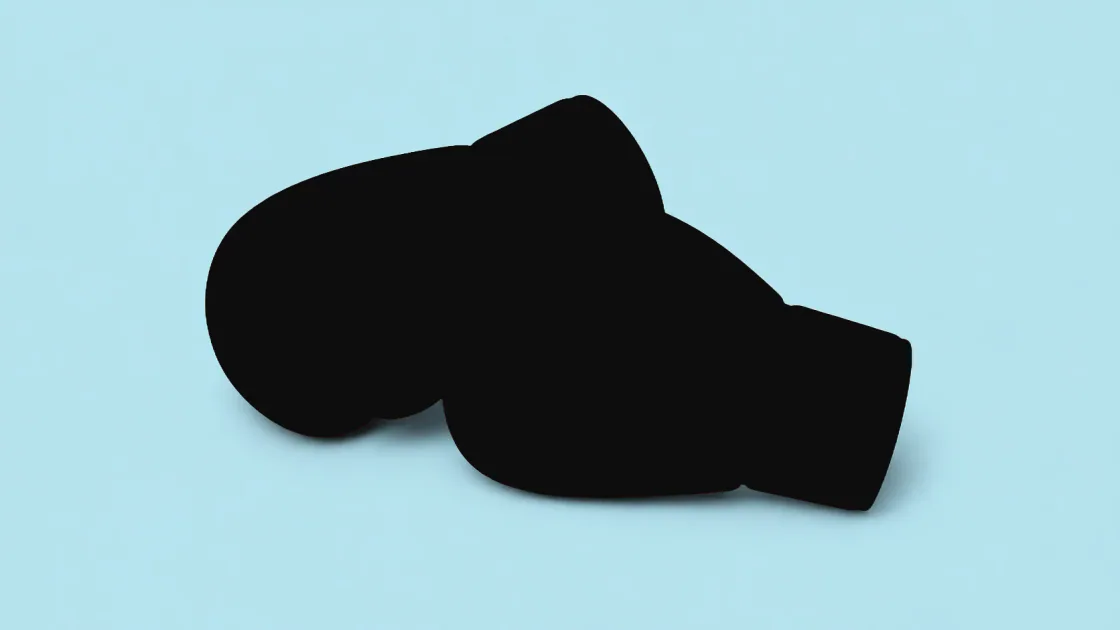
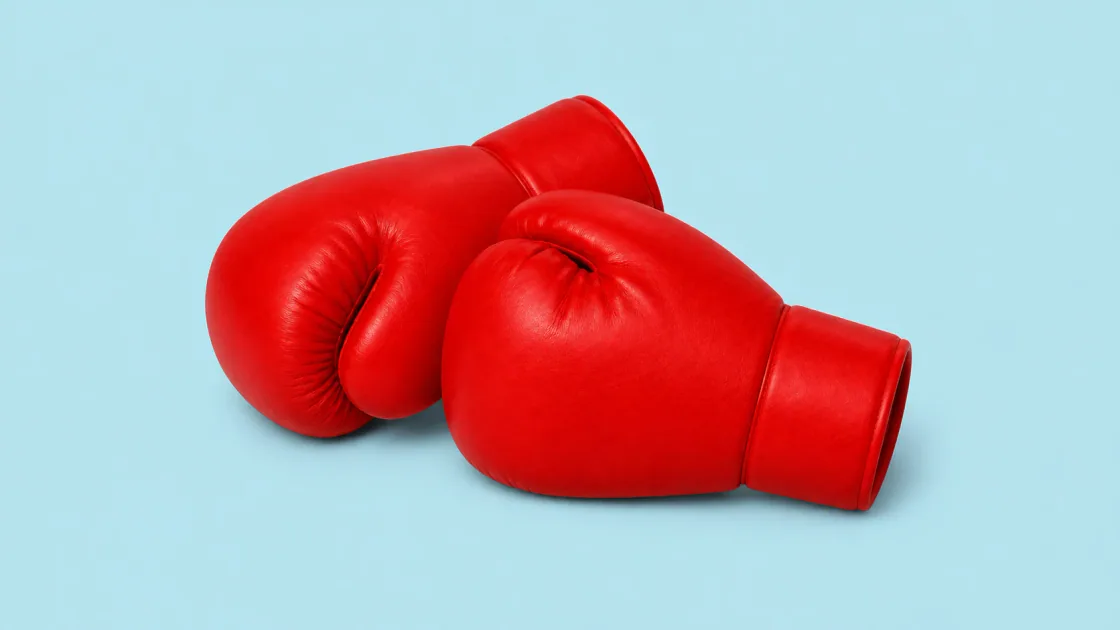
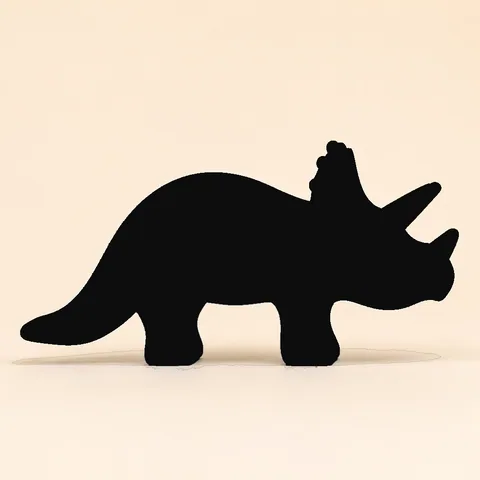
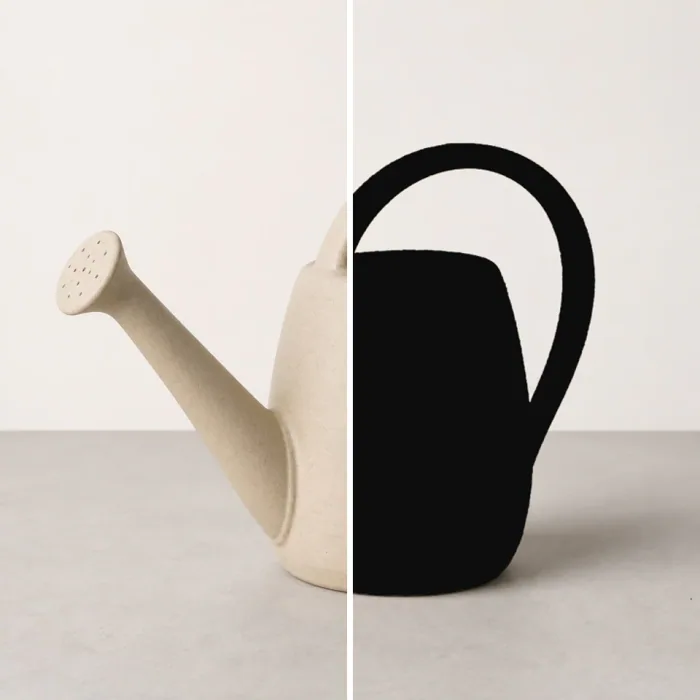
The subject becomes a solid color while the original background stays visible. It works well for “Who is it?” games, reveal slides, mystery thumbnails, and any design where the scene is part of the clue.

02 / TRANSPARENT PNG

Take the shape anywhere.

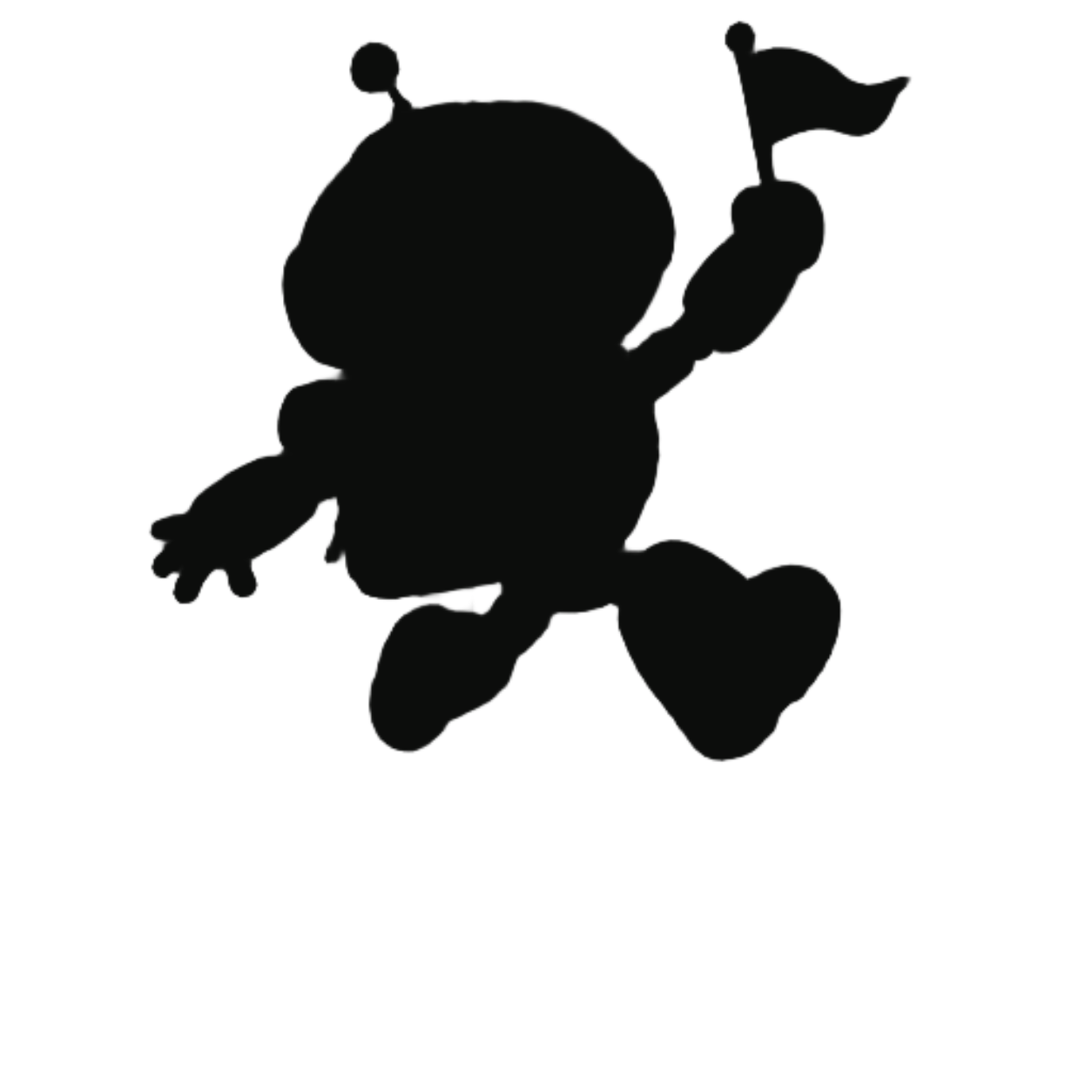
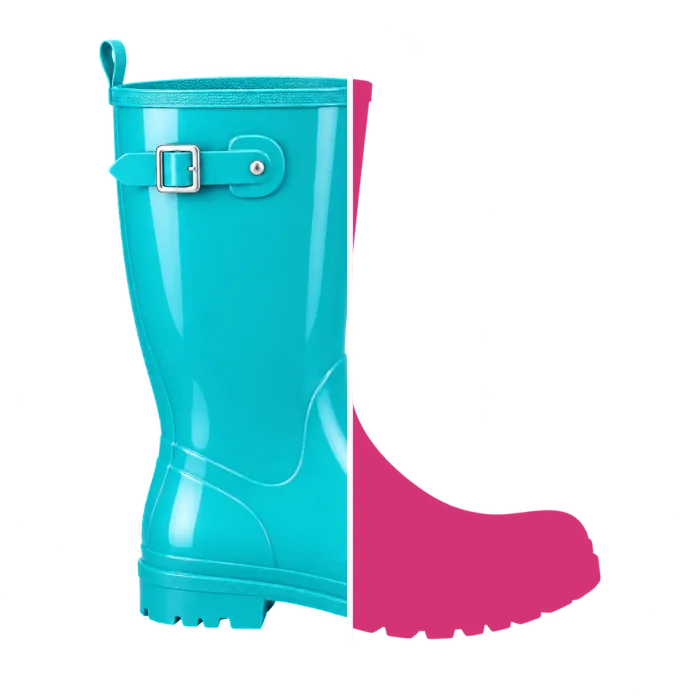
The subject becomes a colored cutout with a transparent background. Place it in a worksheet, presentation, poster, thumbnail, or moodboard without removing the background again.

03 / OUTLINE PNG

Keep the edge. Leave the center open.

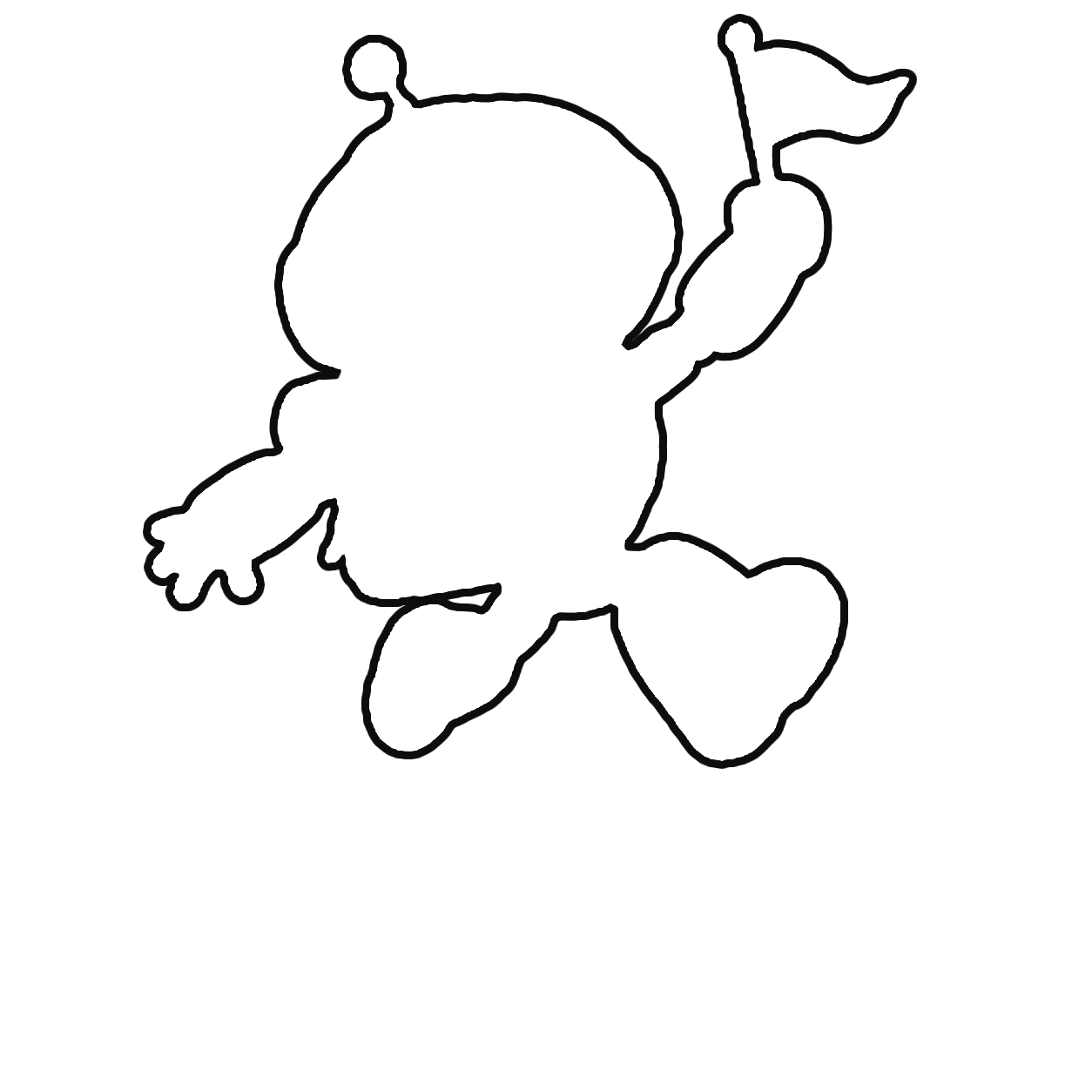
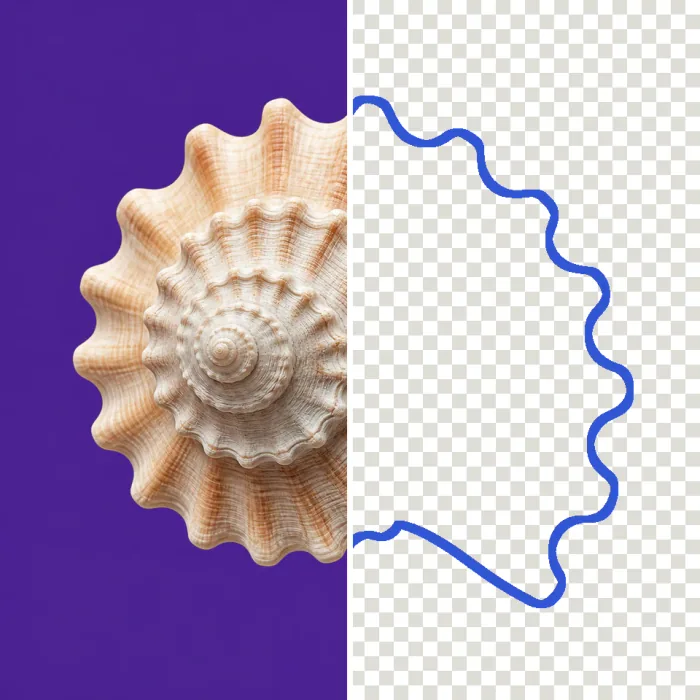
The detected subject becomes a clean outer line on transparency. Overlapping subjects share one combined outer edge, while separate shapes keep their own outlines.

BETTER INPUT, CLEANER SHAPE

Four ways to get a better silhouette.

Automatic subject detection is fast, but it still depends on the pixels in the photo. These simple choices make ears, hair, tails, wheels, and other thin details easier to separate from the background.

01

Choose one clear subject

A single person, pet, product, or character with a readable outline is easier to isolate than a crowded group.

02

Look for contrast

A dark subject against a dark wall can disappear at the edge. Different colors or brightness levels produce a cleaner mask.

03

Keep the outline in frame

If an ear, foot, wheel, or tail is cropped out of the source image, the tool cannot reconstruct that missing shape.

04

Touch up locally

Use Smart Brush to mark a missed or extra piece. Start with a Tight range and widen it only when the full part is not selected.

IDEAS FOR YOUR FILES

Made for quick creative work.

Guessing games

Turn a familiar subject into a visual clue for a party, stream, classroom, or team quiz.

Learning materials

Create shape-matching activities, vocabulary prompts, animal worksheets, and reveal exercises.

Thumbnails and posts

Build a recognizable “mystery guest” or “coming next” visual without opening a full image editor.

Slides and mockups

Use the transparent PNG as a placeholder, a composition element, or a dramatic reveal in a presentation.

SilMaker exports raster PNG files, not vector SVG cut paths. For print production or precision cutting, use the PNG as a starting reference and finish the path in a vector editor.

PRIVATE BY DEFAULT

Your photos
never leave your device.

Everything happens inside the browser you’re using now. We don’t upload, store, or send your images to a server.

✓ No account✓ No server uploads✓ No watermark
Read the privacy policy →
QUESTIONS, ANSWERED

Before you upload.

Are my photos uploaded to a server?

No. The image is opened and processed in your browser. SilMaker does not receive or store the photo you choose.

Which image formats are supported?

You can use JPG, PNG, or WebP images up to 15MB. The downloaded scene and transparent versions are PNG files.

Why can the first conversion take longer?

The first run downloads the subject-detection model to your browser. Later runs may be faster because your browser can reuse cached files.

What does the Selection range slider do?

It changes how far Smart Brush inspects around your rough mark. Tight is safer for small details; Wide helps when a larger connected part is missing.

Why are hair, ears, or transparent objects sometimes missed?

Thin shapes, motion blur, low contrast, reflections, and similar foreground and background colors can make the boundary ambiguous. Smart Brush can correct many local mistakes, but not every image will separate perfectly.

Does the tool create an SVG?

No. It creates raster PNG images at the processed image size. A vector editor is still the right tool for scalable logos, manufacturing files, or precision cut paths.

Can I use the result commercially?

The tool does not change ownership of the source image. Use photos and artwork you created, licensed, or otherwise have permission to process and publish.